




Home Trail Mapping Trail Photos Maps Survey Software Waypoints

Waypoint data, re-routes and updates for The Colorado Trail.

(Looking for Lost Silver Trail of Mexico data or guidebook?  Click here)


NEW REVISED WAYPOINT LIST  5/2011

Waypoint data is available for manually loading is included in the downloads.  

We have created a new waypoint list that reflects all trail changes through the summer of 2010.  To get the waypoint data, click on the link below.   The zip files are available in GPX  format, WGS84 Datum.  In a recreational grade GPS, you can use NAD83 and WGS84 interchangeably.  If your GPS does not use GPX formats you can probably convert these files with the FREE program Babel.  Go to this website and see if yours is supported.   (It probably is.)  

All 1100+ waypoints for the trail are included in the files for ease of loading in your GPS. Files are broken down into various file sizes including three files with fewer than 500 waypoints each for ease of loading in older GPS units..   These waypoints match the Mapbooks.


Download Waypoints for The Colorado Trail or the Continental Divide Trail Here (free)


Pre-Loaded SD Cards for Garmin GPS Receivers 

A few users have expressed a desire to obtain the waypoint files pre-loaded on SD cards for Garmin GPS receivers, eliminating the need to use Mapsource to create your own cards.  If you are willing to pay $31 we will program and mail you two SD cards, each containing half of the appropriate mapset.  These cards will contain as many as 1,000 Waypoints so make sure your GPS can handle that many!  Newer Garmin GPS receivers will work with these cards but older ones probably will not.  If your unit is more than 2-3 years old you might be wasting your money here. To utilize a programmed card, the gps must first be cleared of all waypoints.  The waypoints will load when the card is inserted.  The card is not needed after loading, and may be removed and a map card put in it's place.  The second card is carried along the hike and loaded in the same way when coverage from the first one ends.  


The Colorado Trail $31    CDT- New Mexico $31    CDT- Colorado $31    CDT - Wyoming $31    CDT- Montana $46.50 (3 cards)

Or get a single pre-loaded card with the entire CDT (More than 7,000 Waypoints) loaded as POI's.  $15.50

Single pre-loaded card with the entire Colorado Trail (More than 1,200 Waypoints plus Bike detours) loaded as POI's. 

POI's are not as flexible and easy as waypoints, but this is a good way to carry the entire trail without the need to reload from additional cards.  If you go this route (POI's on a card) the card must be inserted in the GPS in order to access the points. It will not automatically copy the information like with ordinary waypoint files. This might be a problem if your GPS does not have a built in background map but instead relies upon an inserted card. One workaround for this is to insert the card and copy selected POI points to the waypoint list, then re-insert the map card and use the resulting waypoints. Another issue is that POI's are hard to view on the screen. The GPS must be zoomed to the 300' scale to see them.  (This provides about 1 mile of trail view)  To make them easier to view we have created a special symbol for points. There is more information below about POI's.  


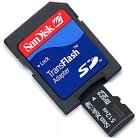
Each card consists of a micro-sd card and a regular sized SD card Adapter so it will work in both your laptop and your gps device.   

Click here for waypoints pre-loaded on SD Cards ($31)


Before loading these files in a GPS, be certain that the GPS is set up properly!!  

IMPORTANT INFORMATION!

How to set up and load your gps

Most GPS receivers will not hold the entire waypoint database.  You may need to reload along the trail. 

Memory stick or CD:  Get a memory stick a office supply and install the program you use to load your GPS on it.  Place the waypoint files on it.  You should now be able to run the loading program and load your gps from the memory stick at  internet coffee shops along the way.  If it needs one, be sure to carry the required cable for your gps.  

SD Cards:  (Preferred method) Some of the newer Garmin units utilize SD cards.  Recent versions of Mapsource will load waypoints onto the SD cards.  To do this use the Mapsource Transfer function with no GPS attached to the computer.   Select Transfer>Send To Device> and check the Waypoints box.  Use the Find Device button to locate the SD card on the computer. Transfer the file to the SD card.   When you are ready to load the data,  clear the waypoints from your GPS, turn it off, then turn it back on with the SD card inserted.  The waypoints will load into the GPS and the card can be removed.  Three cards will suffice to load the three furnished files. This has been tested with newer models of the 60CSX and the Coloado 400t, and will probably work on some other models as well. 

Using GPX files without Mapsource:  Many newer gps receivers will accept GPX format data.  To load these files in a Garmin unit that uses SD cards without using Mapsource, follow these steps:  

1.    Place a SD card in your PC and make a directory named Garmin and a subdirectory in it named GPX.

2.    Copy the .gpx file you wish to use to the the \Garmin\GPX\ subdirectory.

3.    Clear the waypoints from the gps, turn it off, and insert the card.  When you turn the gps back on, the waypoints will be copied to the gps.  You can now remove the SD card and replace it with your appropriate Mapsource one if desired – the waypoints will remain until cleared again.  Load additional cards to cover the entire trail.   

POI Files:  Some Garmin units allow the use of POI (Point of interest) files. The advantage of using this feature is that all of the waypoints for the trail may be loaded at one time as POI’s and the waypoint memory is still available for your personal use. The POI’s may be navigated to just like any waypoint, but will only be identified as a point without a label on the gps screen.  (The full point id is still visible in the list view)  They are loaded from the gpx files. 

Garmin provides a free utility that will load these files into your GPS.  Follow this link to get the loader:  

http://www8.garmin.com/support/download_details.jsp?id=927


For best results, set up Mapsource and your GPS to match before loading files:

The native coordinate system for Mapsource and for most gps receivers is WGS84 with a Lat / Long degrees-minutes-decimal minutes display.  All the many other position formats require conversion via formulas programmed into the units.  When you switch from WGS84 to NAD27 in Mapsource or in a GPS a algorithm calculates and displays the new values for positions.  Same when you switch from a Lat / Long format to UTM.  Some users have reported gps conversion errors using Mapsource.  We feel that this is due to multiple conversions going on, and the settings in the gps not matching the settings in Mapsource.  You should be able to avoid all these issues by setting up your Mapsource and GPS receivers to match in the WGS84 system with Lat / Long display before opening any files with Mapsource or transferring any data to the gps. 


Machine loading waypoints from downloaded files:

If you are using Mapsource, make sure that all setups in Mapsource and on the GPS match!  There is a setup in Mapsource under the Edit tab.  Select Edit>Preferences>Position.  Make sure that the Datum setting is set to NAD83 or WGS84.  Set the Position format to one of the Lat / Long options.  Then make sure that the GPS is configured to match.  (NAD83 or WGS84 and identical Lat / Long setting.) Then connect and load the gps receiver or SD card.  Once loaded, you can switch to a different datum in the gps if desired and to UTM.  

The new "The Colorado Trail Map Book" is configured for NAD83 UTM as well as Lat / Long, so if you are using it, just switch to UTM UPS and leave the Datum setting at WGS84 or NAD83.  If you are trying to match the UTM setting on a USGS Topographic Map, switch the gps Datum setting to NAD27 CONUS (Continental US) and Position format to UTM UPS.  The proper Spheroid setting, if there is one, is Clarke 1866.


MANUAL ENTRY FROM tables in "The Colorado Trail Map Book Tables"      

    click on image for more information

When you buy a new gps it generally comes from the manufacturer configured for Latitude / Longitude and WGS84.  It will match the data in the new map book exactly.   There is no reason to change the settings unless you want to use the UTM feature and that is fairly straightforward.   

The gps MUST BE SET UP correctly for Units and Coordinate System BEFORE you manually load any waypoint data!!!!!

The data in the Map Book is all NAD83 Format.  (WGS84 will work ok as well)

1.    Find and select the "Setup" menu on your GPS.

2.    Find and select the "Units" menu

3.    Set the "Positions Format" to  hdddmm.mmm  (degrees-minutes-decimal minutes) or UTM  This tells the unit what format the data is in before you load it.

4.    Some newer GPS units have settings for both Datum and Spheroid.  You may need to look under both options before you find the one you need.  Set the "Map Datum or Map Spheroid"  to NAD83 or WGS84.  If you are entering Lat / Long data from the tables, set the Position Format to the default degrees-minutes-decimal minutes. (Hdddmm.mmm and Lat / Long)  If you are using UTM, set the setting to  UTM UPS.  (Map Datum will be None  and Spheroid will be WGS84 in some newer units)

5.    Manually enter the data in the the positions format you selected (Latitude / Longitude or UTM).  The data will now match the Mapbook.   

Remember, if the GPS is not set up to match the data format you are entering before entering the data, the gps will not work properly!!  

MANUAL ENTRY FROM tables in "The Colorado Trail official Guidebook" or "Databook"      

The gps MUST BE SET UP for Units and Coordinate System BEFORE you manually load any waypoint data!!!!!

The guidebook and Databook have printed waypoint data.  This data is in NAD27 Datum Format.  

1.    Find and select the "Setup" menu on your GPS.

2.    Find and select the "Units" menu

3.    Set the "Positions Format" to  hddd.ddddd  (decimal degrees)  This tells the unit what format the data is in before you load it.

4.    Set the "Map Datum or Map Spheroid"  to NAD27 and CONUS 

5.    Manually enter the data.  The data will now match the guidebook

.Remember:  Whenever you manually load data in a gps, the data entered MUST match whatever format the gps is configured for.  THEY HAVE TO MATCH or you will be way off!


"The Colorado Trail Map Book" 

Go to  The Colorado Trail Foundation website. 


Home